
繁體中文版 | 原文: 英文
切換為英文 → 如何在 DWG FastView for Mobile 中量測半徑
如果您正在尋找一個特別標籤為 "Measure 半徑" 在 DWG FastView for Mobile 中,您可能會發現主功能表中缺少此功能。不過,有幾種專業方法可以找出任何圓形物件的半徑。以下是獲得精確結果的三大方法。.
Method 1: Using the "Measure Entity" Tool
這是從物件擷取幾何資料的最直接方法。與其測量點,不如測量實體本身:- 選取物件: 點選繪圖中的圓或弧線。.
- 開啟工具箱: 找到 測量工具箱 在螢幕底部。.
- Choose "Measure Entity": 選取此工具,然後在物件上按一下。如果是圓形或弧形,應用程式會立即顯示 半徑 在結果方塊中。.

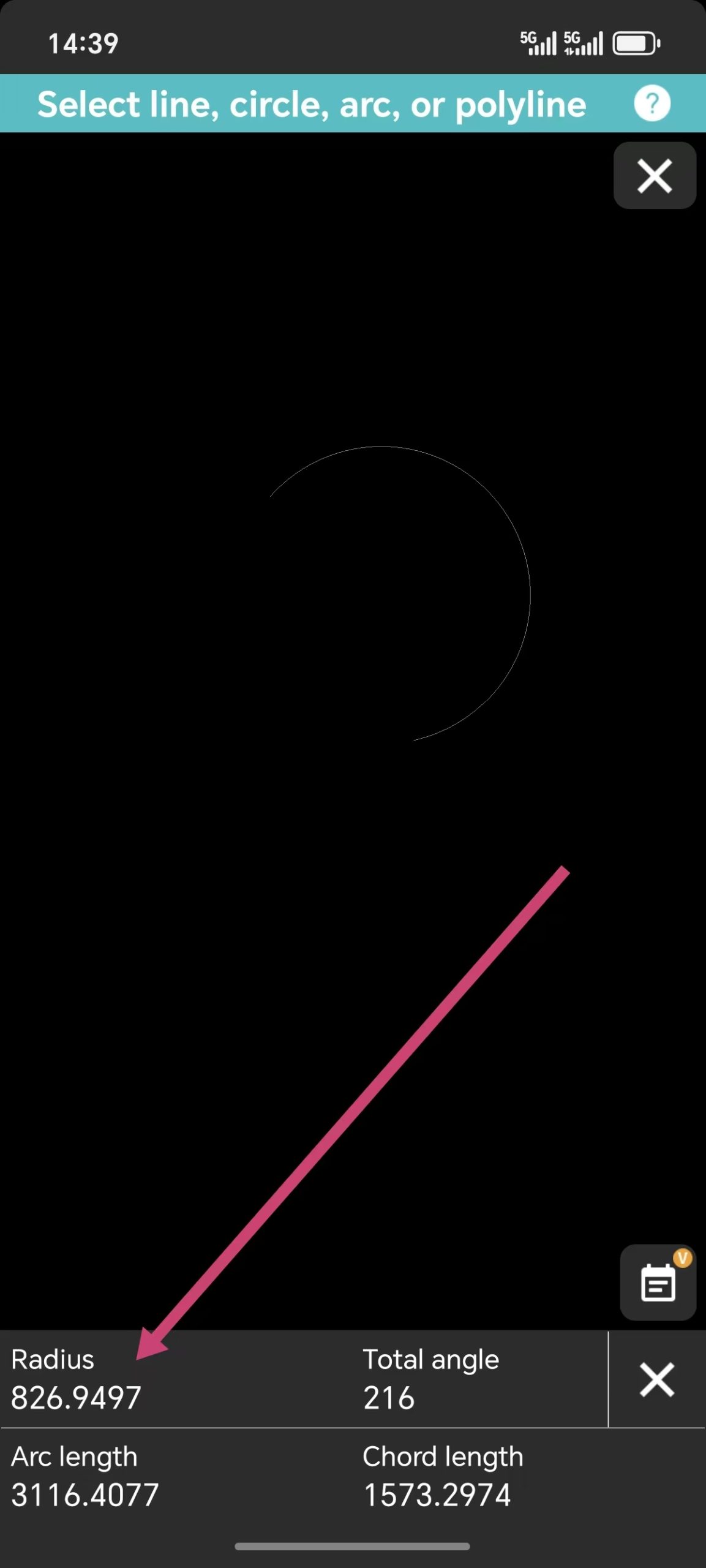
方法 2:使用「弧長工具
另一個可靠的捷徑隱藏在 弧長 工具。. When you use 這 tool from the 測量工具箱 to 選擇 a curve, the system doesn't just show the length—it also reveals the radius of that specific 弧 as part of the 措施ment data.方法 3:使用尺寸工具
Sometimes the best way to "措施" is to "注解." 在裡面 尺寸工具箱, 您會發現一個專用的 半徑尺寸 工具:- 選擇 半徑尺寸 工具。.
- 點選要檢查的圓或弧。.
- 半徑會以視覺標籤的形式出現在您的圖面上。.
Whether you use the "Entity" 措施ment for a quick check or the "Dimension" tool to mark the 繪畫, finding a radius in DWG FastView is simple once you know which tool to grab. You no longer need a single "Measure 半徑" button when you have these versatile options at your fingertips.
這是否有助於您掌握行動 CAD 工作流程?
上述方法並非免費,但您每天有 10 分鐘免費試用時間。如果您想解鎖所有功能,並獲得 5GB 雲端儲存空間,以及移除手機上的所有廣告,您可以按一下下面的按鈕,在手機應用程式中升級。別擔心。在手機應用程式中升級也適用於 Windows 版本。.

相關文章推薦
💬
讀者留言與技術討論
U
PLAN ARCHITECTURAL – DEUX APPARTEMENTS JUMELÉS
Projet d’habitation – Plain-pied (R+0)
Dimensions : 12 m × 10 m par appartement
Nombre de logements : 2 (jumelés, symétriques)
⸻
1. DESCRIPTION GÉNÉRALE
Le présent projet concerne la construction de deux appartements jumelés de plain-pied, disposés côte à côte et partageant un mur mitoyen central.
Chaque appartement est conçu de manière fonctionnelle et comprend trois chambres, un salon, une cuisine, un WC + douche, un couloir, ainsi qu’une terrasse avec enclos arrière privé.
⸻
2. COMPOSITION D’UN APPARTEMENT
• 3 Chambres
• 1 Salon
• 1 Cuisine
• 1 WC + Douche
• 1 Couloir
• 1 Terrasse / Enclos arrière
A
Abdur Rahim
Aap DWG FastView app ka istemal karte hue line draw karna chahte hain? Is video me, hum aapko step-by-step guide denge ki kaise aap DWG FastView app me aasani se line draw kar sakte hain. DWG FastView ek powerful tool hai jo aapko apne CAD files ko mobile device par dekhne aur edit karne ki suvidha deta hai. Is tutorial ko follow karke aap apne projects me professional lines draw kar paayenge.
*Is Video Me Aap Sikhne Wale Hain:*
1. DWG FastView app download aur install kaise kare.
2. App open karne ke baad line draw karne ke liye tools kaise access kare.
3. Line drawing ke basic steps aur tips.
✍️ 發表您的留言
您的電子郵件地址絕不會被公開顯示。標有 * 的欄位為必填項。