
Try DWG FastView’s Comparison Tools Now
DWG FastView for Windows has some great comparison tools. These tools help you find differences between two drawings easily. Let’s take a look at them.
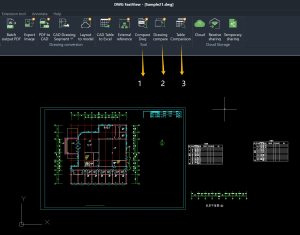
Drawing Data Comparison
Pick two drawings. This tool checks their data and shows differences with different colors. It’s simple to see what’s changed, added, or removed.
Drawing Appearance Comparison
Choose two drawings, and this tool turns them into pictures. It then shows you the visual differences between the two pictures. You can clearly see how they look different.
Table Comparison
CAD drawings often have tables. This tool compares two tables to find data differences. It’s easy to spot where numbers or words are not the same.
All three comparison tools are paid features. But don’t worry – you can try them for free for 10 minutes every day. These tools can save you lots of time when checking drawings. Whether you’re a designer, engineer, or anyone working with CAD files, they’ll make your work much easier. If you are reading this post on PC, please click the button below to download and install it on Windows.
If you are now on mobile phone, you can enter your email below and you will receive a download link of the Windows version or if you already installed the free mobile version, just click the upgrade button to unlock all features and remove all ads on mobile version. Whatever you subscribe on Windows or Mobile(Google play or iOS appstore), one account can be used on multiple platforms such as Web, Windows or Mobile and the annotations or dimensions you made on the drawing can be synced across different devices and platforms.

📥 Apply for PC Download Link from Mobile Phone
Reading on your phone? Enter your email address below and we will immediately send the DWG FastView for Windows download link to your inbox.
Related Posts
Comments & Discussion
✍️ Leave a Reply
Your email address will not be published. Required fields are marked *