
چگونه از قابلیت جدید حاشیهنویسی ویدیویی در DWG FastView موبایل استفاده کنیم؟
Have you ever struggled to explain a complex on-site issue to your design team using only static screenshots and long paragraphs of text?
Phone calls often fail to convey the exact spatial relationships, and static photos can miss crucial details. To bridge this communication gap between the job site and the office, DWG FastView Mobile is thrilled to introduce our brand-new feature: Video Annotation!
Now, you can record live videos directly on-site and pin them to specific هماهنگ كردنs on your طراحی CADs. A video is worth a thousand words—let's make your project collaboration faster, clearer, and more efficient.
راهنمای گام به گام: How to Use Video Annotation
Using this powerful new feature in the DWG FastView App is simple. Just follow these steps:
Step 1: Open Your CAD Drawing
Launch the DWG FastView Mobile app and open the طراحی CAD you need to inspect or mark up.
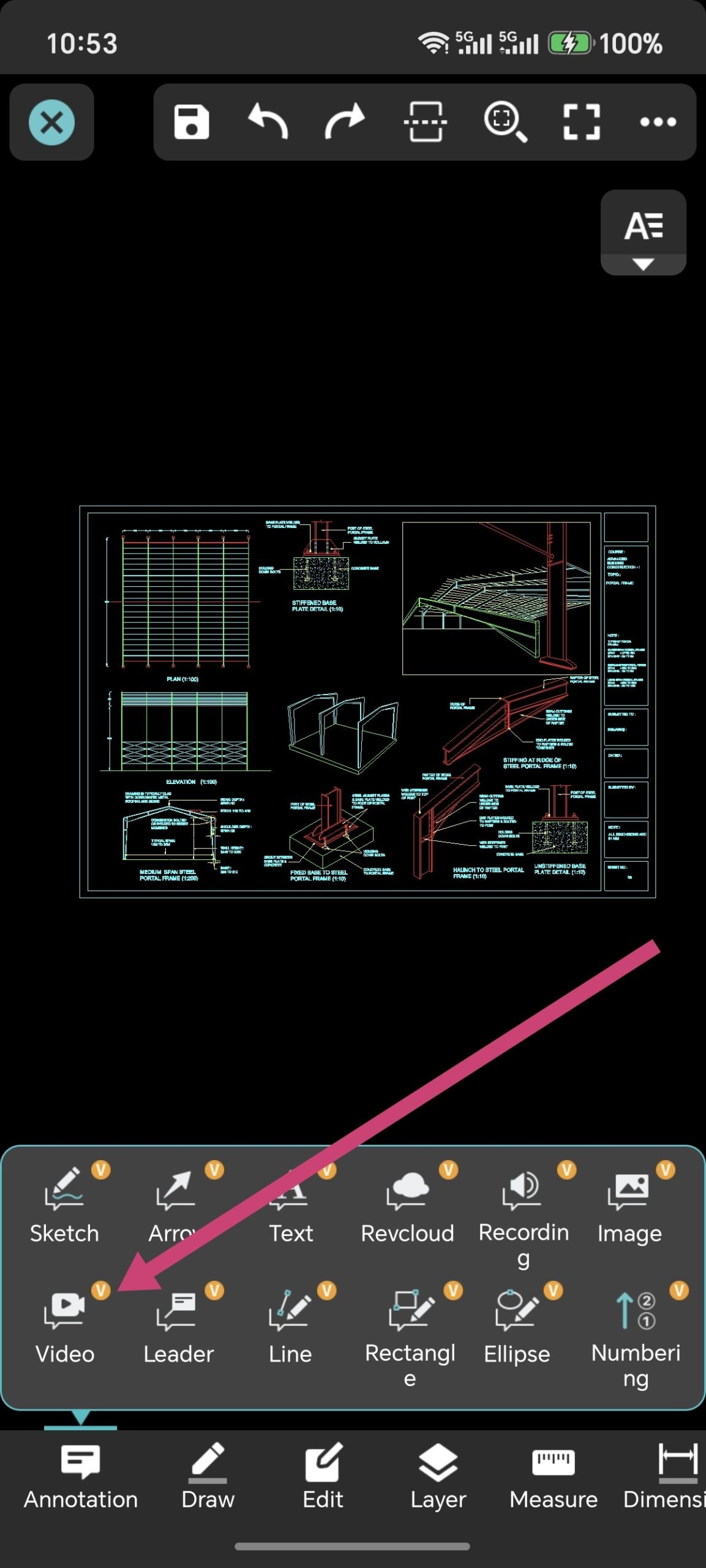
Step 2: Open the Annotation Toolbox
Tap the "Annotation Toolbox" icon located in the bottom or side toolbar to expand your markup options.
Step 3: انتخاب کنید "Video Annotation"
Find and tap the new "Video Annotation" icon from the toolbox.
Step 4: Choose the Location Point
Tap on the drawing to select the exact point where you want to insert your video (e.g., a cracked corner, a pipe that needs relocation, or a quality inspection spot).
Step 5: Grant Camera Permissions & Record (Up to 1 Minute)
• If it is your first time using this feature, the system will prompt you to allow camera and microphone access. Tap "Allow" to proceed.
• The camera interface will open automatically. Start recording the live conditions of the site.
• Pro Tip: You can record a video for up to 1 minute, giving you plenty of time to show details from multiple angles and add voice explanations.
Step 6: Save and Pin Your Video Markup
Once you finish recording, preview the video. If everything looks good, tap "OK". A video markup icon will be instantly pinned to your selected هماهنگ كردن on the drawing. Check the whole process by watching this Youtube video guide.
Although DWG FastView provides free trial for the video حاشیه نویسی feature, but you can only use it free 10 minutes. if you want to unlock all features & remove all ads, please click the button below to upgrade your DWG FastView account on mobile phone. If you want to upgrade on PC, click اینجاهر زمان که حساب خود را در برنامه تلفن همراه یا وب ارتقا دهید، حساب VIP یکسان است و میتواند در دستگاهها، موبایل، ویندوز و مرورگرهای وب استفاده شود.

مطالب مرتبط
Comments & Discussion
✍️ Leave a Reply
Your email address will not be published. Required fields are marked *